html
How to Dual Boot Windows 10 and Ubuntu: A Comprehensive Guide
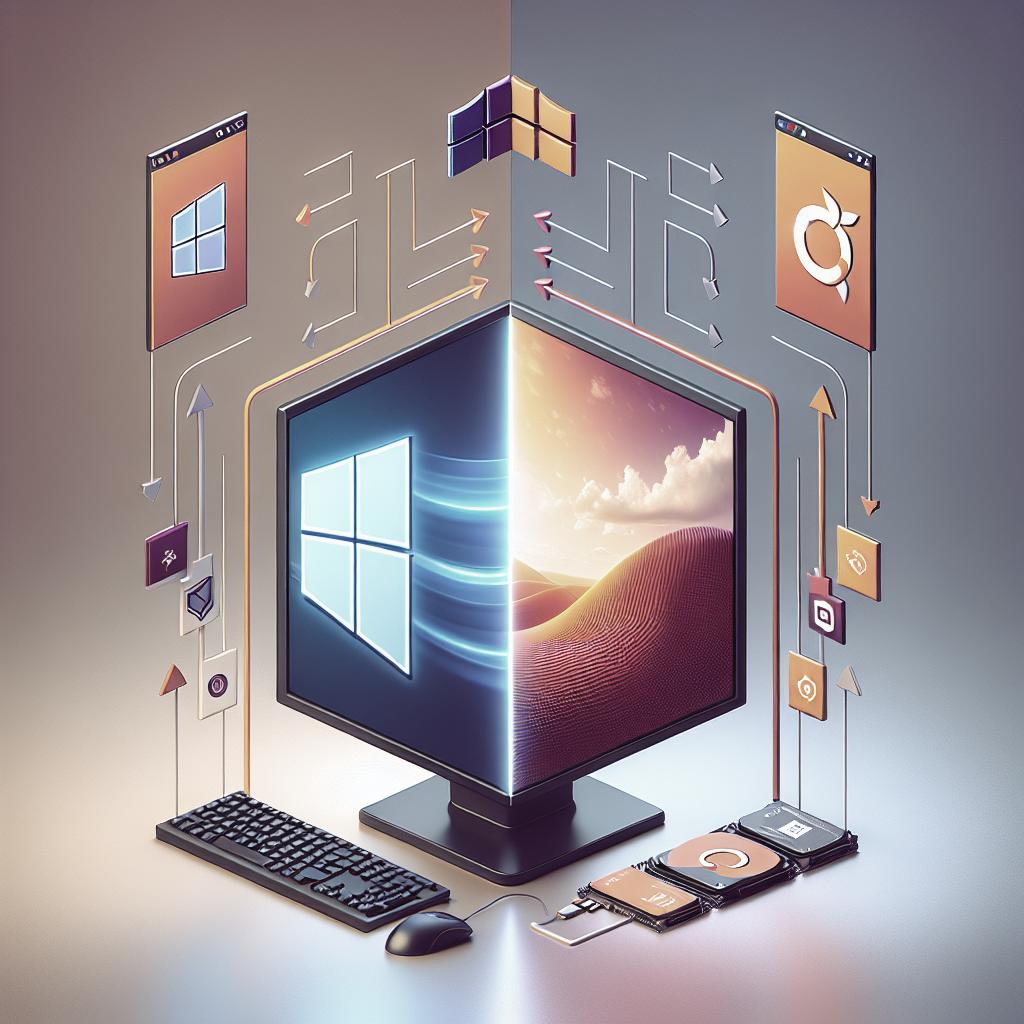
Dual booting Windows 10 and Ubuntu lets you enjoy the best of both operating systems: the compatibility of Windows and the customizable, open-source nature of Linux. This guide provides a systematic walkthrough, enabling you to seamlessly set up both OS on a single machine. We’ll delve into the essential prerequisites, how to check your BIOS mode, and the necessary steps to partition your hard drive. Furthermore, we’ll explore optimizing space, downloading Ubuntu, creating a bootable USB, and finally, installing it alongside Windows 10. This process will empower you to fluidly switch between operating systems, making the most out of your computer’s capabilities.
What We’ll Cover – A Step-by-Step Guide to Dual-Booting Windows 10 and Linux
Dual booting is a convenient method to have two operating systems reside on one machine. This guide provides a structured overview, from checking system requirements to successfully navigating the installation of Ubuntu alongside Windows 10. Encountering different operating systems’ environments can enhance your productivity and technical skills.
The following steps are designed to demystify the dual-booting process, making it accessible even to those new to tech. By following the guide, you will be able to partition your drive adequately, avoid common pitfalls, and ultimately leverage both operating systems’ distinct advantages.
Prerequisites
Before diving into dual booting, ensure your PC meets the minimum system requirements for both Windows 10 and Ubuntu. Typically, this means at least 4GB of RAM, 25GB of free storage for each OS, and a stable power source. Additionally, it’s crucial to back up existing data to prevent data loss during partitioning and installation.
Both operating systems should be downloaded in advance, with Windows 10 already installed as it simplifies the process. You should also possess a reliable USB drive with at least 8GB capacity. This USB will serve as your bootable Ubuntu installation media.
How to Check If Your PC BIOS is in UEFI Mode
Identifying whether your system operates in UEFI or legacy BIOS mode is essential, as this affects installation procedures. To check your BIOS mode, press the Windows key, type “System Information,” and hit Enter. Look for the “BIOS Mode” entry; it will indicate either UEFI or Legacy.
If your system runs in Legacy mode, consider switching it to UEFI through the BIOS setup, accessed by pressing a designated key (usually F2, F10, or DEL) during boot. Switching to UEFI helps in accommodating GPT partitioning, which is favorable for dual-boot setups.
How to Partition your Hard Drive for Ubuntu
Partitioning your hard drive is crucial for making space for Ubuntu alongside Windows 10. Start by accessing the Disk Management tool via Windows. Locate the drive you wish to resize, right-click, and select “Shrink Volume.” Allocate at least 25GB for Ubuntu, creating unallocated space where Ubuntu will be installed.
It’s important to ensure the space you free up comes from the end of the drive to avoid affecting your Windows installation. Having unallocated space ensures Ubuntu can be installed without interfering with your existing Windows setup.
How to Optimize your Hard Drive for More Partition Space (Optional)
For those who require additional space, optimizing your hard drive can free up significant storage. Begin by deleting unnecessary files and using disk cleanup tools to remove temporary files and system caches. Use the defragmentation tool to reorganize fragmented data, making shrinking partitions more efficient.
Consider transferring seldom-used files to external storage or cloud services to maximize available disk space. By optimizing your system, you ensure both operating systems run without performance hitches due to limited storage.
How to Download Ubuntu in ISO Image Format
Visit the official Ubuntu website to download the latest ISO image. Select the appropriate version (typically Ubuntu Desktop) depending on your system architecture (32-bit or 64-bit). Save the ISO file in an easily accessible location.
The ISO image is your primary tool for creating a bootable USB drive. Ensure the download is complete and verify the checksum to confirm the file’s integrity, preventing installation errors due to corrupted downloads.
How to Make an Ubuntu (Linux) Bootable USB Drive
Creating a bootable USB drive allows your computer to install Ubuntu from the ISO image. Use tools like Rufus, Etcher, or UNetbootin, which are user-friendly and reliable. Insert your USB drive, open the tool, select the Ubuntu ISO file, and choose the USB drive as the target location.
Adjust any tool-specific settings, generally sticking to defaults recommended for Ubuntu. Initiate the process, and once complete, your USB will be ready to boot your system into Ubuntu for installation.
How to Install Ubuntu Linux Distro along with Windows 10
Insert the bootable USB into your computer and restart it. Access the boot menu by pressing the designated key (often F12, F10, or ESC) during startup. Select the USB drive to boot from it, leading you to the Ubuntu installation screen.
Choose “Try Ubuntu” to load a session without disrupting existing files, ensuring all systems appear functional. Proceed to “Install Ubuntu” and select “Install Ubuntu alongside Windows Boot Manager.” Follow on-screen instructions, specifying the unallocated space made earlier for Ubuntu.
Now You Can Dual Boot Ubuntu and Windows 10
Once installation is complete, remove your USB drive and restart your computer. You will be greeted by the GRUB boot menu, allowing you to select either Windows 10 or Ubuntu. Familiarize yourself with both operating systems’ dual functions to optimize your workflow.
From now on, you can switch between Windows and Ubuntu at startup, selecting the OS required for your tasks. This dual-boot configuration will enhance versatility, opening up broader opportunities to develop cross-platform proficiency.
Lessons Learned
| Step | Description |
|---|---|
| Prerequisites | Ensure system meets requirements and backup data. |
| Check BIOS Mode | Verify UEFI/Legacy mode to streamline installation. |
| Partition Hard Drive | Create unallocated space for Ubuntu installation. |
| Optimize Hard Drive | Free up space and defragment for better efficiency. |
| Download Ubuntu ISO | Download and verify Ubuntu ISO for bootable media. |
| Create Bootable USB | Use tools like Rufus to create installation media. |
| Install Ubuntu | Install Ubuntu in parallel with Windows using GRUB menu. |
| Use Dual Boot | Leverage both OS for enhanced versatility and tasks. |